---
title: Change Templates in Bulk
description: Learn how to bulk change the template used by multiple quotes or invoices.
---
[Skip to content](https://help.paycove.io/knowledge/bulk-change-template#main-content)
[Contact us](https://help.paycove.io/knowledge/kb-tickets/new)
[![paycove\_logo\_explore\_nautical\_wide-08.svg\]](https://help.paycove.io/hubfs/Imported%20images/paycove_logo_explore_nautical_wide-08.svg)](https://www.paycove.io/)
- [FAQs](https://help.paycove.io/knowledge/frequently-asked-questions)
- [Help Articles](https://help.paycove.io/knowledge/help-articles)
Open main navigation
Close main navigation
- [FAQs](https://help.paycove.io/knowledge/frequently-asked-questions)
- [Help Articles](https://help.paycove.io/knowledge/help-articles)
- [Contact us](https://help.paycove.io/knowledge/kb-tickets/new)
- [Go to paycove.io](https://www.paycove.io/)
[Go to paycove.io](https://www.paycove.io/)
Hi there. How can we help you?
- There are no suggestions because the search field is empty.
1. [Help Center](https://help.paycove.io/knowledge)
2. [Help Articles](https://help.paycove.io/knowledge/help-articles)
3. [Managing Quotes and Invoices](https://help.paycove.io/knowledge/help-articles#managing-quotes-and-invoices)
# Change Templates in Bulk
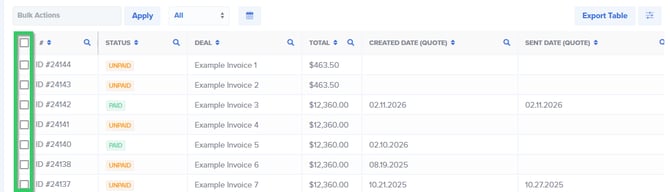
Need to change templates on many quotes/invoices at once? You can easily do so by utilizing the **Change Template** feature in **Bulk Actions.** First, navigate to the Quotes or Invoices table, and select the deals you'd like to change using the checkboxes. Alternatively, you can click the top checkbox to mass highlight all the deals on the page. (Remember that you can increase the results per page to up to 100.)
[](https://help.paycove.io/hubfs/bulk-change-template-1.png)
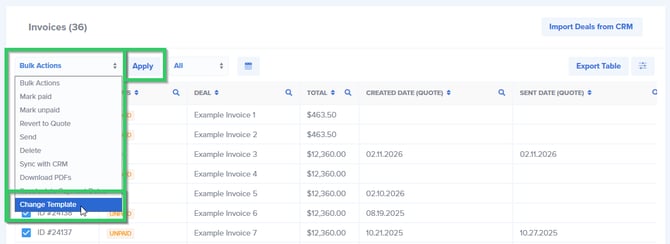
Next, click the **Bulk Actions** button, select **Change Template,** and click **Apply.**
[](https://help.paycove.io/hubfs/bulk-change-template-2.png)
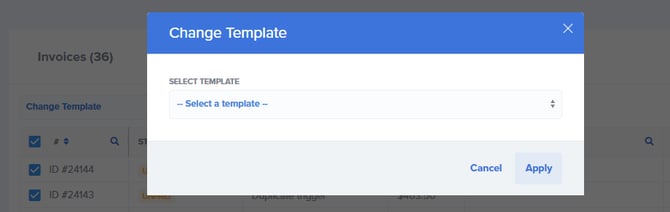
A modal will open, and you can choose your desired template from the dropdown. Click **Apply.** You'll know it has gone through as a success notification will appear.
[](https://help.paycove.io/hubfs/bulk-change-template-3.png)
Keep in mind that when changing templates, scheduled payments will not update. You'll need to edit those manually if you'd like to modify them.
Learn more about templating with **[these resources.](https://help.paycove.io/knowledge/how-do-i-use-templates)**
Still have questions? FThen feel free to reach out to us at support@paycove.io, and we'd be glad to help.
- [Help Articles](https://help.paycove.io/knowledge/help-articles#main-content)
- [Getting Started and Integrations](https://help.paycove.io/knowledge/help-articles#getting-started-and-integrations)
- [Customizing Templates](https://help.paycove.io/knowledge/help-articles#customizing-templates)
- [Managing Quotes and Invoices](https://help.paycove.io/knowledge/help-articles#managing-quotes-and-invoices)
- [Products and Subscriptions](https://help.paycove.io/knowledge/help-articles#products-and-subscriptions)
- [Payments, Taxes, and Fees](https://help.paycove.io/knowledge/help-articles#payments-taxes-and-fees)
- [Account Settings](https://help.paycove.io/knowledge/help-articles#account-settings)
- [Other Help Articles](https://help.paycove.io/knowledge/help-articles#other-help-articles)
- [Frequently Asked Questions](https://help.paycove.io/knowledge/frequently-asked-questions#main-content)
- [Managing Quotes and Invoices](https://help.paycove.io/knowledge/frequently-asked-questions#managing-quotes-and-invoices)
- [Integrations](https://help.paycove.io/knowledge/frequently-asked-questions#integrations)
- [Payments](https://help.paycove.io/knowledge/frequently-asked-questions#payments)
- [Account Settings](https://help.paycove.io/knowledge/frequently-asked-questions#account-settings)
- [Pricing and Plans](https://help.paycove.io/knowledge/frequently-asked-questions#pricing-and-plans)
- [Other](https://help.paycove.io/knowledge/frequently-asked-questions#other)
[](https://www.paycove.io/)
[mailto:support@paycove.io](mailto:support@paycove.io)
Copyright © 2026, Paycove