![paycove_logo_explore_nautical_wide-08.svg]](https://help.paycove.io/hubfs/Imported%20images/paycove_logo_explore_nautical_wide-08.svg)
An invoice's total may need to be changed for a variety of reasons - for instance, upon adding a product to the deal, or applying a fee/discount. Whatever the cause, you can ensure that the change is reflected in your scheduled payments by using the Recalculate feature. We typically recommend that our clients use this feature for ease and accuracy, as it avoids manual recalculation. Read on to learn about how the feature works.
First, go to your template editor and open the template you'd like to edit. Next, scroll down to the Scheduled Payments panel on the right side, and click Configure. A modal will open where you can edit your scheduled payments. At the bottom of the Scheduled Payments modal, you'll see the checkbox titled "Recalculate on total update?"
Recalculate on Total Update
(First Checkbox)
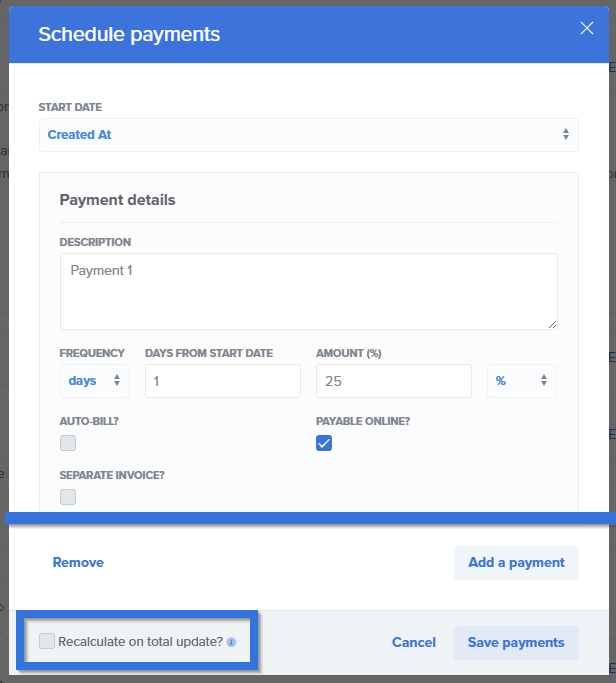
Tip icon says: "Scheduled payments will be recalculated automatically to reflect changes in the total."
If you check this box, your scheduled payment amounts will automatically recalculate when the invoice total changes, for any reason. (The change can occur in the CRM or the invoice itself.) This means that each scheduled payment amount will match the new total.
Be aware that if this box is unchecked, then the scheduled payments don't get updated when the invoice total is changed.
If you change the invoice total after one of the scheduled payments has already been paid, you need to have the second box checked, which we'll discuss below.
Recalculate on Total Update After Payment
(Second Checkbox)
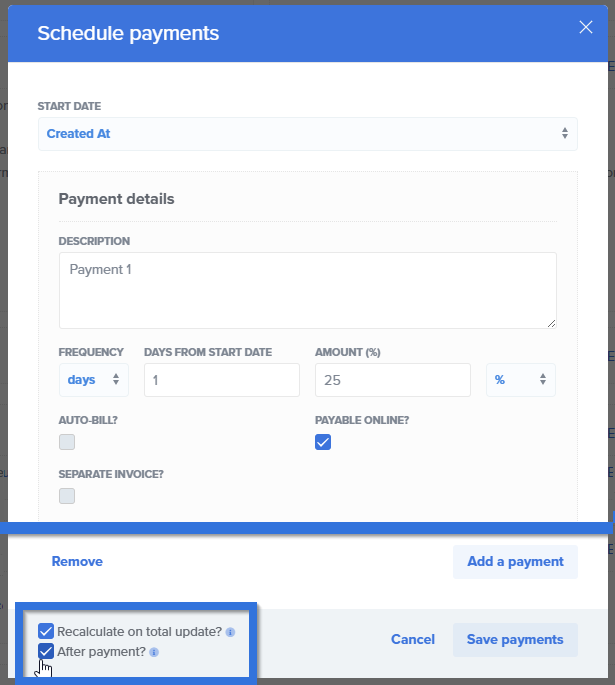
Tip icon says: "Scheduled payments will be recalculated even if a payment has been made. Additional balance will be added to the last payment; negative balance will be deducted from the last payment."
Once you check the first box, this second one will appear. Checking it will allow scheduled payments to recalculate even if a payment has already been made. Any unpaid payments will be recalculated to cover the remaining total. The new extra money will be distributed across all unpaid payments, proportionally based on their percentages.
While not required, we recommend checking both boxes together for accuracy and ease. This will allow the scheduled payments to be up-to-date at all times, whether or not any payments have already been made. Therefore, your scheduled payments will always match the total.
Click Save Payments when you're done editing your scheduled payments.
Note: When something recalculates, you'll see a notification in the Activity feed.
Q&A
Q: What if I only have the first box checked and a payment has already been made, then the invoice total gets updated?
A: Scheduled payments will not be recalculated since a payment was already made.
Q: Why would I want only the first checkbox checked?
A: Most users typically wouldn't, but doing this would give you more control over how money is distributed. This can help ensure that existing scheduled payments are not disrupted or modified.
Recalculating in an Individual Invoice
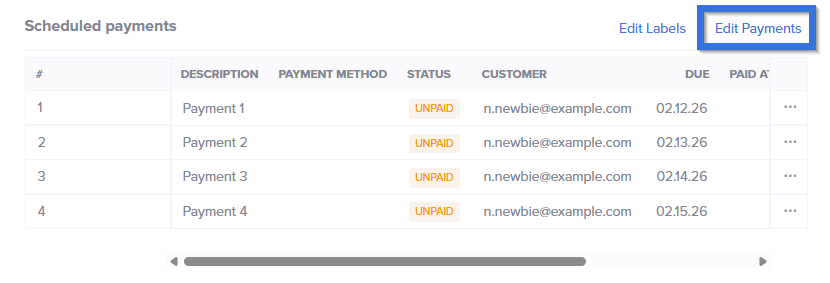
You can choose to recalculate payments in just an individual invoice too, but only if no payments have been paid. To do so, open the desired invoice, scroll down to the Scheduled Payments table, and click Edit Payments. A modal showing your current scheduled payments and settings will open.
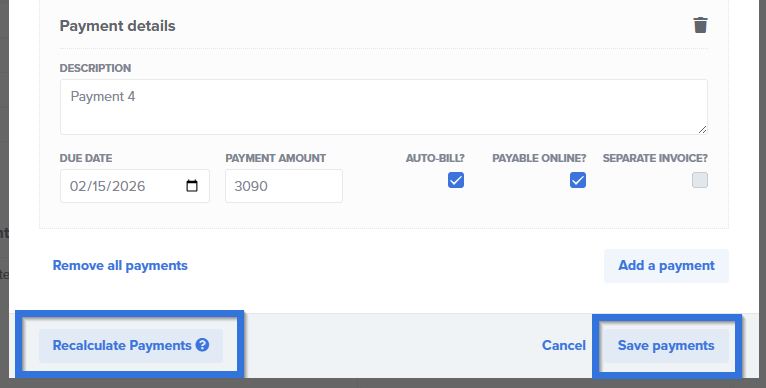
 At the bottom of the modal, you'll find the Recalculate Payments button. When you're done making your desired changes, be sure to save.
To learn more about scheduled payments, take a look at this article.
And to learn about splitting, merging, and marking scheduled payments as "paid," check out this article.